MULTIEDIT / GUIDE
Resize photos in a batch
Resize several photos in one export. Select up to 50 images, set a percentage and check the resulting width and height before saving.
SKcorporation · 2026-11-14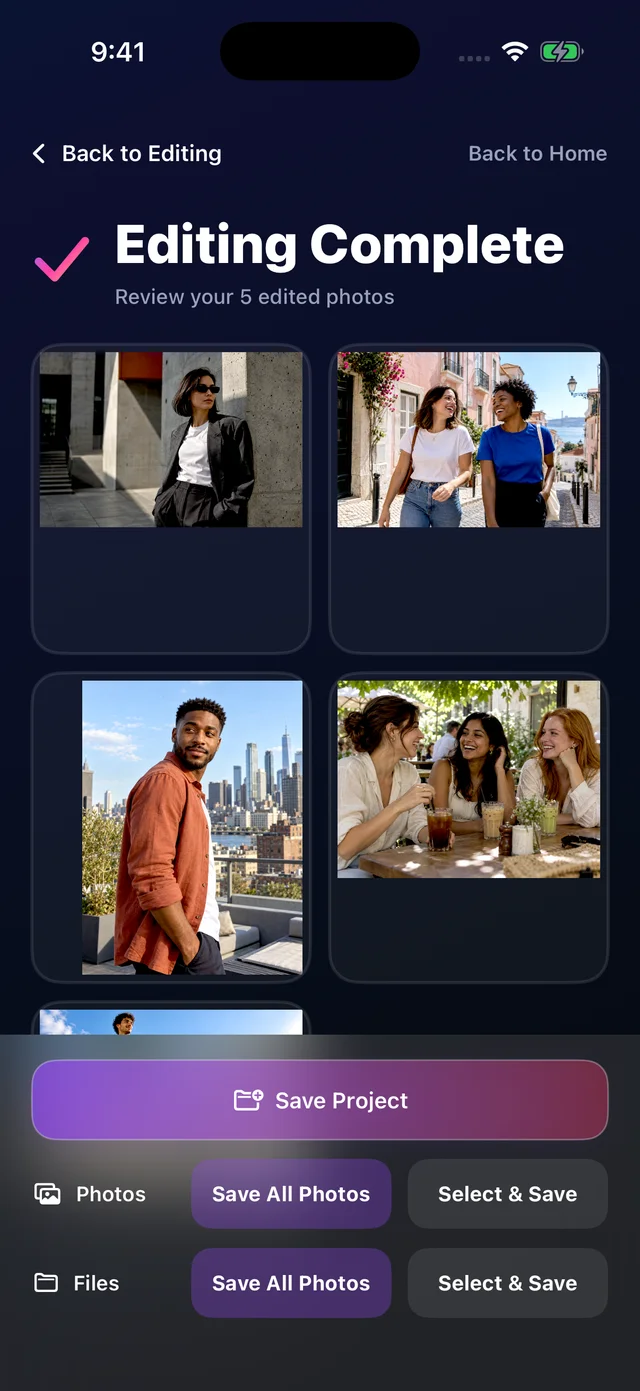
How to
- Select up to 50 photos in MultiEdit and make any edits you want.
- Tap the checkmark to open the finished-photo screen. Choose Save all or Select to save.
- Open the save settings and adjust the size percentage. Check the pixel dimensions for each photo before saving.
- Choose JPEG or PNG and save to Photos or Files on iPhone, or gallery or files on Android.
At 50%, a 4000 × 3000 photo becomes 2000 × 1500 pixels. The percentage changes dimensions, not a fixed file size. Enlarging an image does not restore missing detail. Choose PNG for transparent backgrounds.
Free and Pro
Both iPhone and Android support editing and exporting up to 50 photos on the free plan.