MULTIEDIT / GUIDE
Blur faces across multiple photos
Use Face Blur to cover detected faces across selected photos. Inspect every face and exported image before sharing.
SKcorporation · 2026-11-14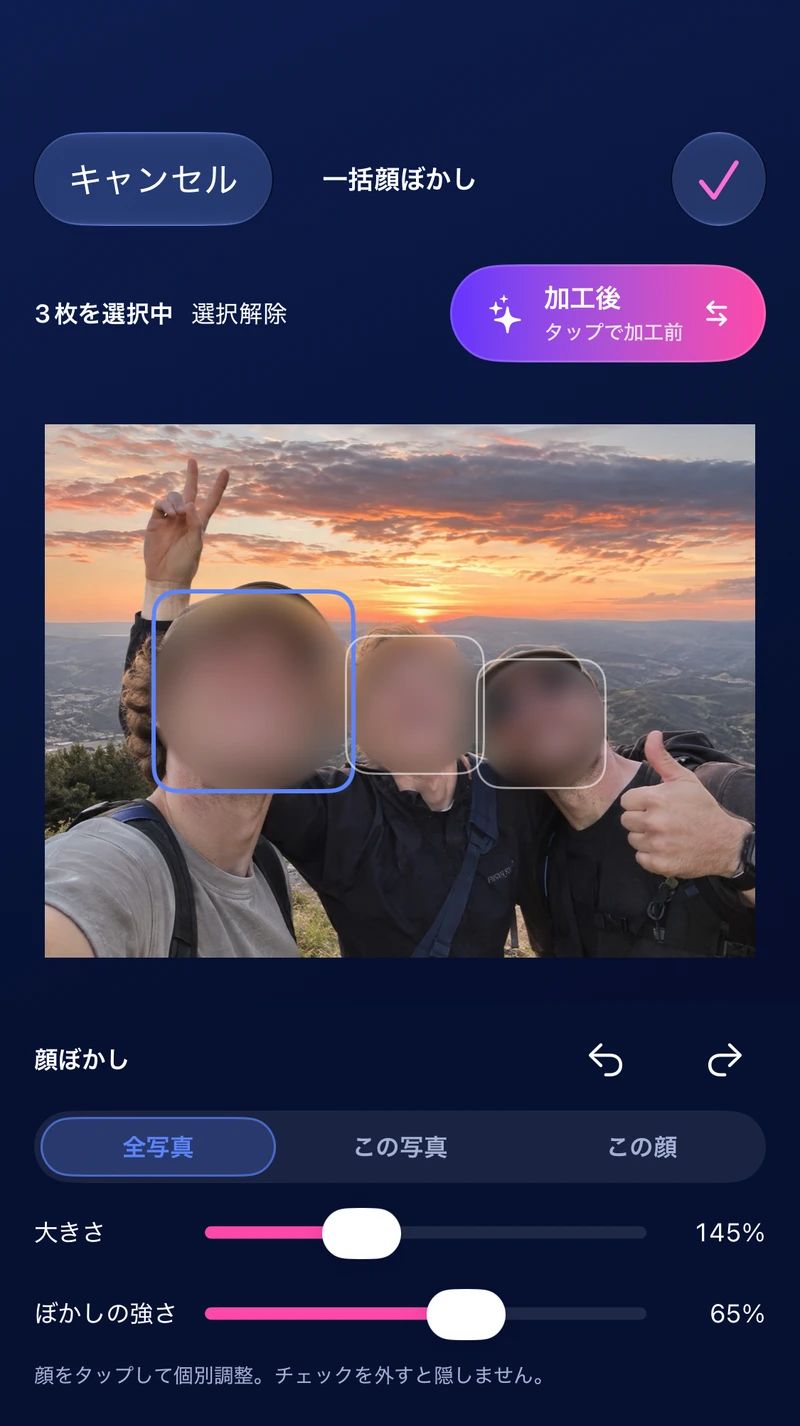
How to
- Select your photos and open Magic, then choose Face Blur.
- Choose the photos to include and use All Photos to adjust the batch. Switch to an individual photo or face when it needs a different adjustment.
- Adjust coverage, blur strength and edge softness. Zoom in and check every face, especially small or partially obscured faces.
- Confirm, finish editing and save. Open the exported images and check that all faces you want hidden are covered.
Automatic detection may miss faces or cover them incompletely. Do not rely on the preview alone when privacy matters.
Free and Pro
Face Blur is available on iPhone; it was not included in the verified Android version 1.1.4. Free iPhone users have one Magic use per day. A batch counts as one use; Pro removes the limit.