How to batch edit photos on iPhone
Choose up to 50 photos, apply one edit to the set, then fine-tune any individual shot. Here’s how to take a photo album or a set of product shots from Photos to export.
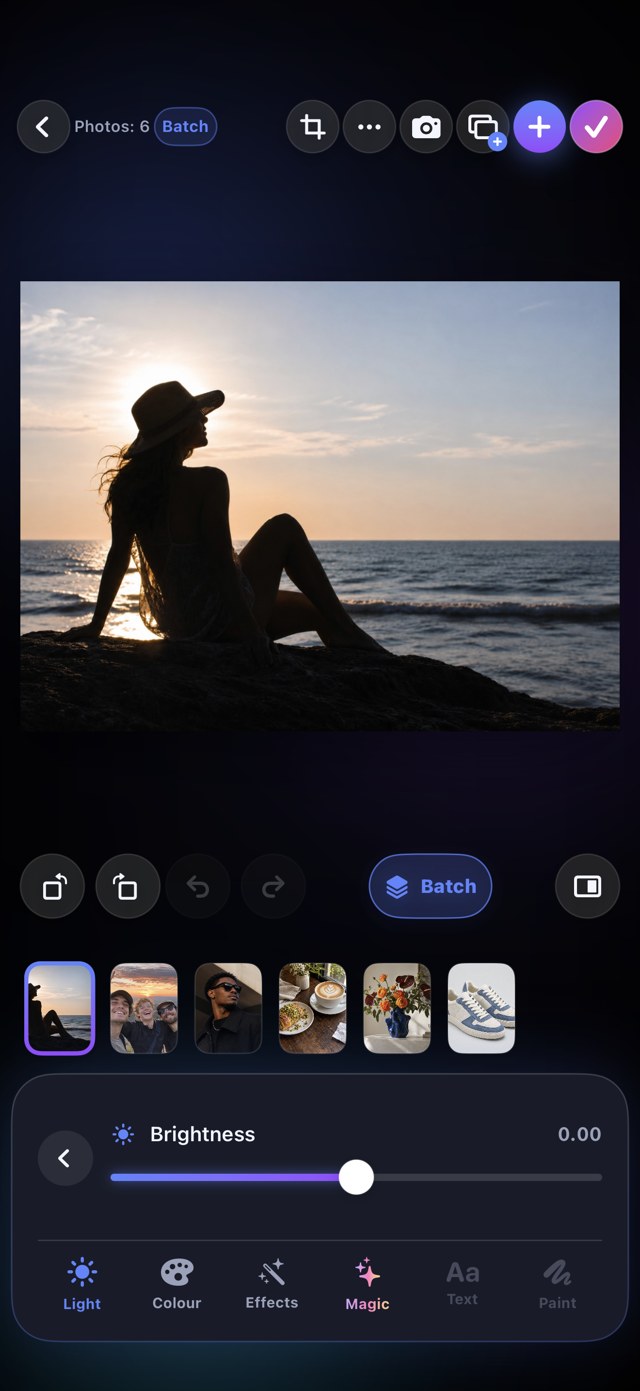
Select your photos
Open MultiEdit and select the photos you want to edit. You can also select several images in Photos, tap Share and choose MultiEdit. In batch mode, adjusting the brightness or contrast applies your change across the set.
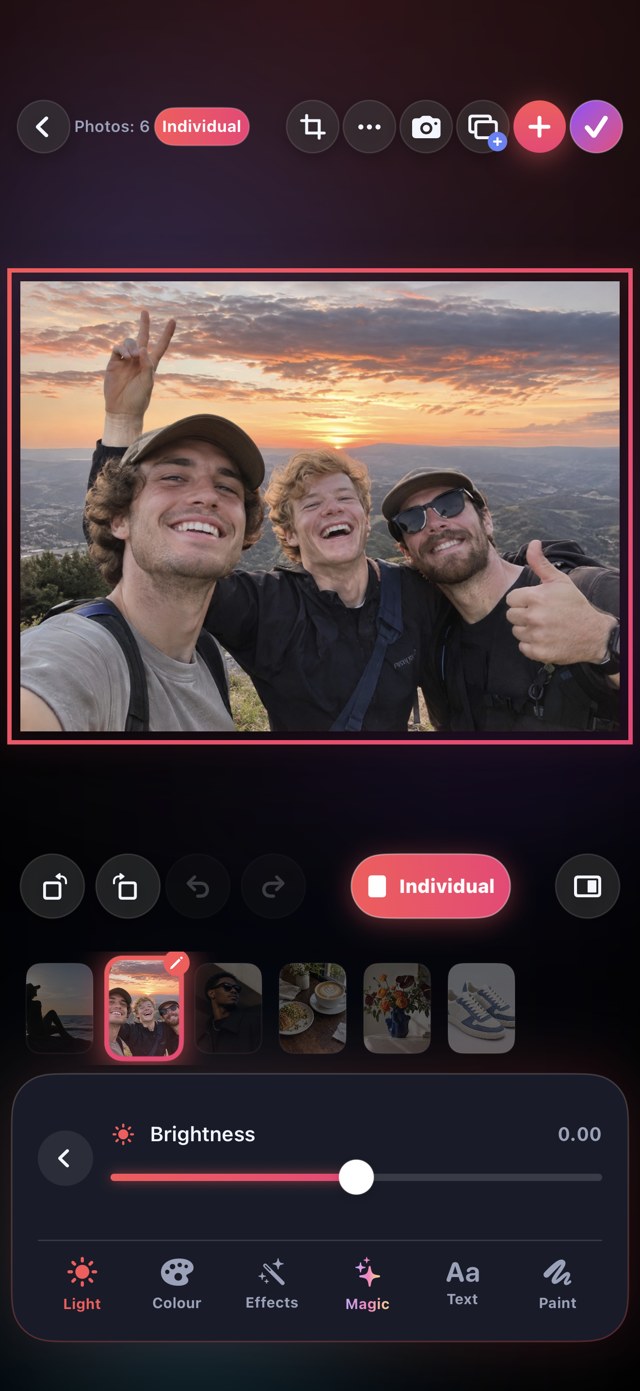
Correct one shot
Switch to individual editing and tap a thumbnail. Adjust a backlit portrait or a photo taken indoors while keeping the rest of the album as it was.
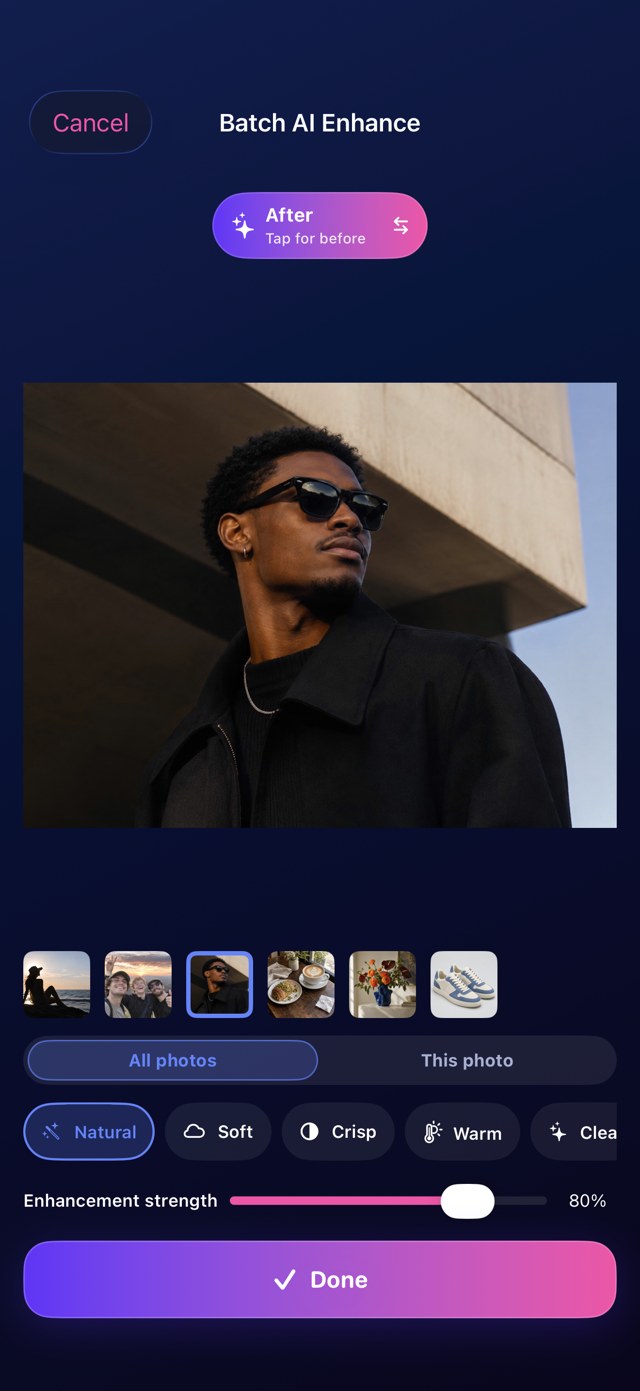
Balance colour across an album
Open Batch AI Enhance and choose a look. The app adjusts each shot for its own lighting. Move the strength slider and tap the thumbnails to check both the brightest and darkest shots.
Watermark product photos
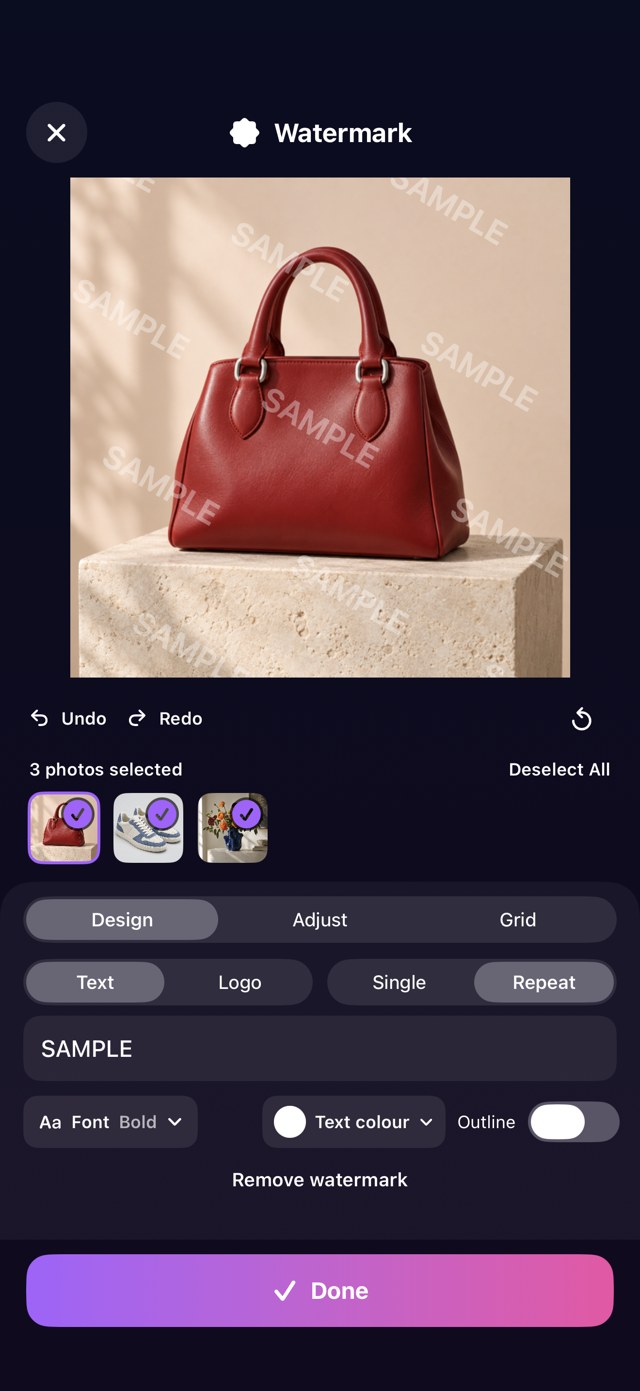
Choose Watermark in Magic, select the product shots and enter your text or add a logo. Set its size, angle and opacity. Preview it against both light and dark areas before applying it to the batch.
Add matching borders
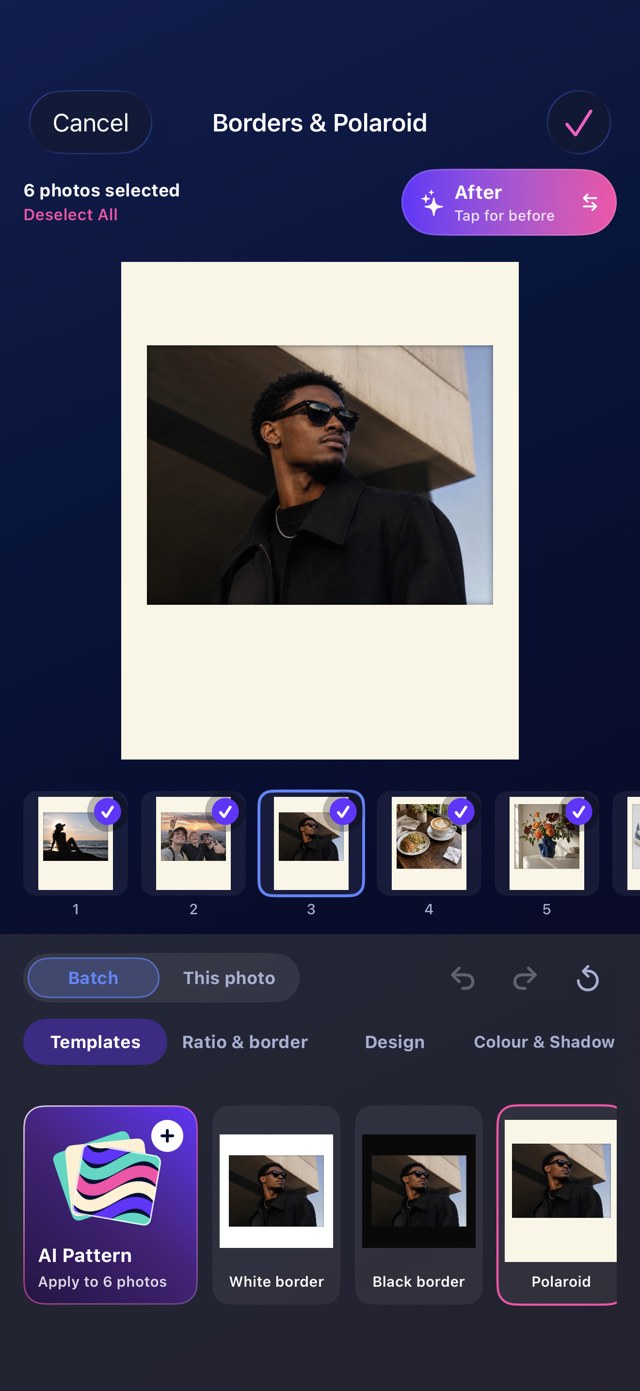
Choose a common aspect ratio in Borders & Polaroid. Add space around each photo, choose a frame colour and move the subject into position.
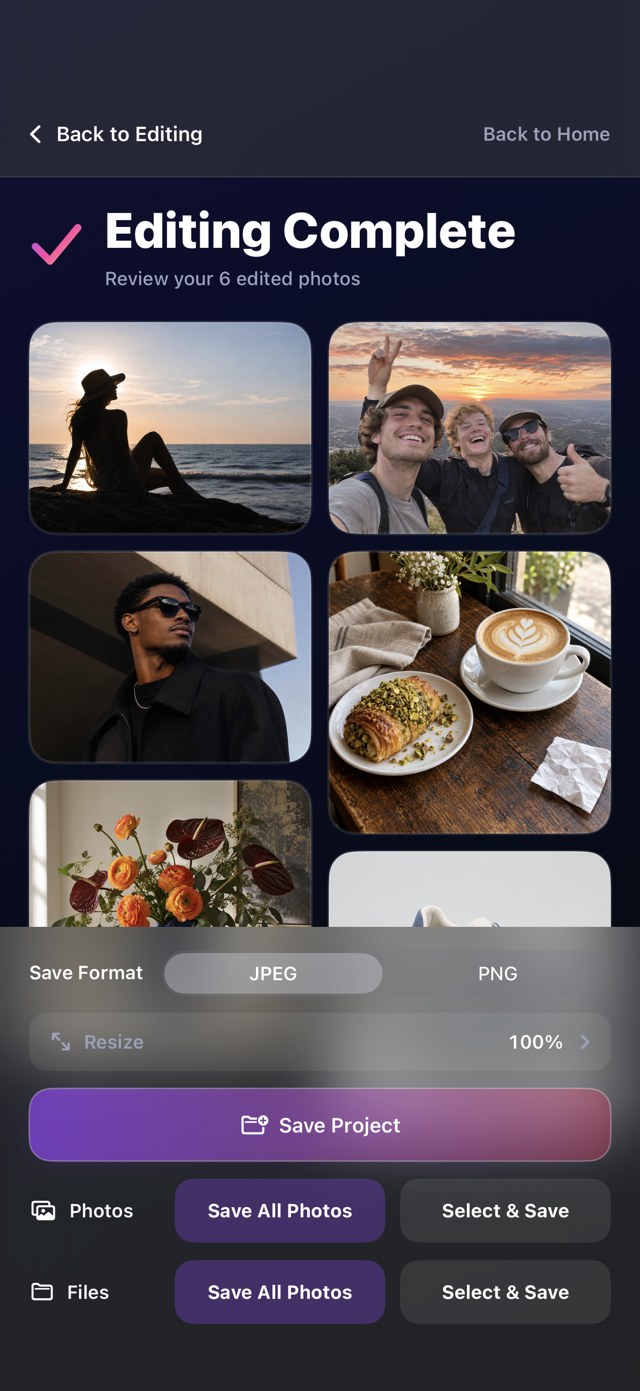
Resize and save
Finish editing and choose the photos to save. Set the size as a percentage and check the pixel dimensions. For example, 50% turns a 4000 × 3000 photo into 2000 × 1500. Choose PNG to keep transparent areas.