MULTIEDIT / iPhone + Android
How to Crop Multiple Photos to the Same Aspect Ratio
Make a consistent set of images for a listing, gallery or social post. Batch Crop changes the framing, while export resizing changes pixel dimensions.
SKcorporation · 2026-11-14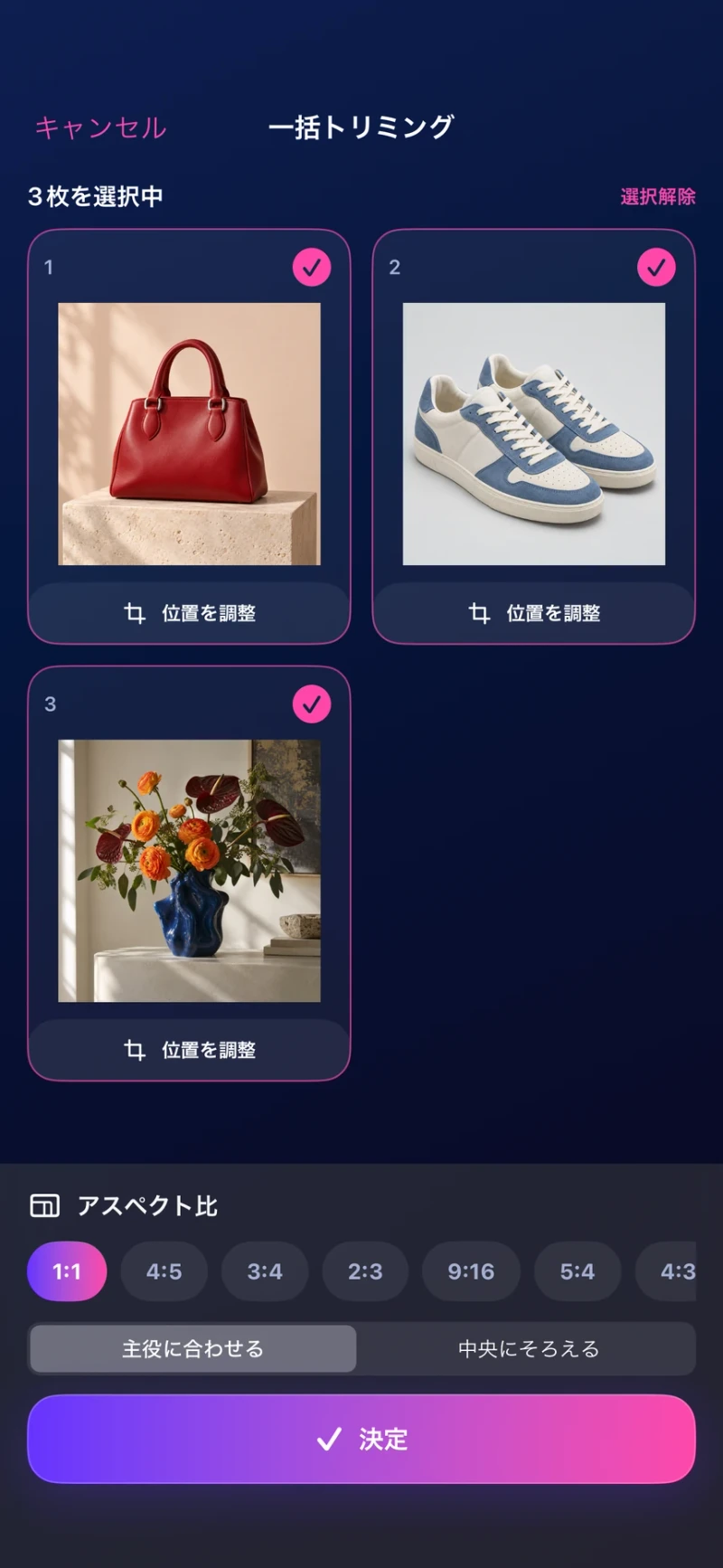
Step by step
- Select your photos in MultiEdit and open Magic from the editor.
- Choose Batch Crop and select the photos to include.
- Pick an aspect ratio, such as a square, for the batch.
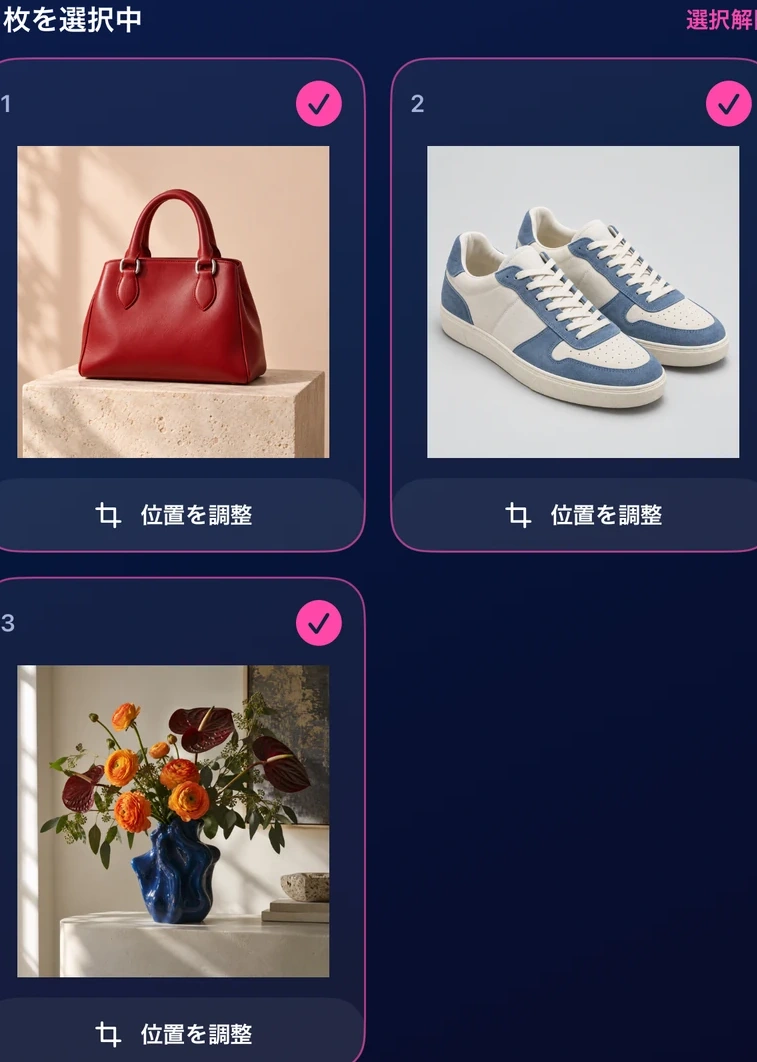
- Inspect each preview and adjust the framing so the subject and important details remain visible.
- Confirm the crop, finish editing and save all or selected photos.
An aspect ratio describes the shape, not the exact pixel dimensions. If you need smaller files in pixels, set an export percentage when saving.
Free and Pro
Batch Crop is a Magic tool on iPhone and Android. Free iPhone users have one Magic use per day; the verified Android version has two per week. A batch counts as one use. Pro removes the limit.
Frequently asked questions
Does cropping change the file size?
It removes parts of the image and can change the resulting dimensions and file size. The exact size depends on the photo and export settings.
Can I crop multiple photos to a square?
Yes. Choose the square aspect ratio and review the framing of each photo before confirming.